
You may sometimes have to clear your browser cookies and other settings, especially if there has been a system upgrade. This browser extension makes this easier to do, and it only removes data from the current site, so it does not remove data from other sites that you may wish to retain.
Microsoft Edge
In the toolbar at the top of Microsoft Edge, click the"Extensions" icon.
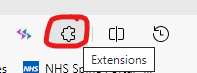
The click the "Get extensions for Microsoft Edge" link.

On the Microsoft Edge Add-ons page, enter Clear Site Data into the search box. The extension wanted should appear below the search box.
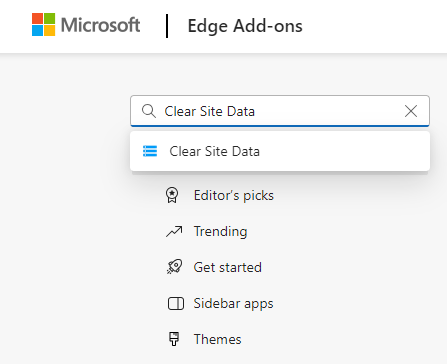
Click the Clear Site Data extension.
On the right-hand side of the screen, you will see a Blue button marked GET.

Then click "Add Extension" from the pop-up that appears.
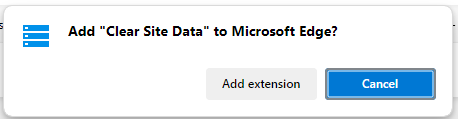
This gets installed automatically.
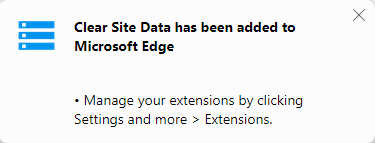
To enable the extension, click the extensions icon again in your browser. Then click the crossed-out eye to make the new extension visible in your browser bar.
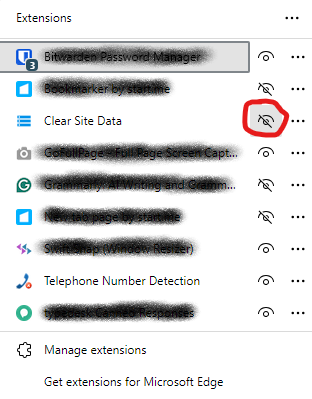
This icon then appears in the browser toolbar.

To clear the data for the website you are on, click the clear site data button, ensuring the All Web Sites selection is not clicked. Instead, it should show the URL for the current website. All other options should be ticked, as shown below.
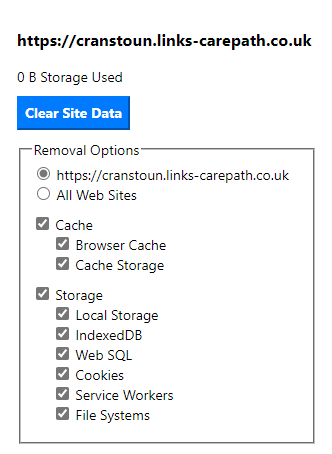
When you click the button, it turns red and asks you to confirm by clicking the button again.
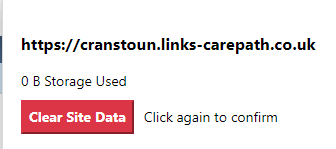
Once it says Done (a few seconds later), you can click the extension icon again to close the extension and refresh the web page you have just cleared with the F5 key or the refresh button.

Once installed, the default options remain, so only steps 10-12 will be required.
